From chat to code, in four steps
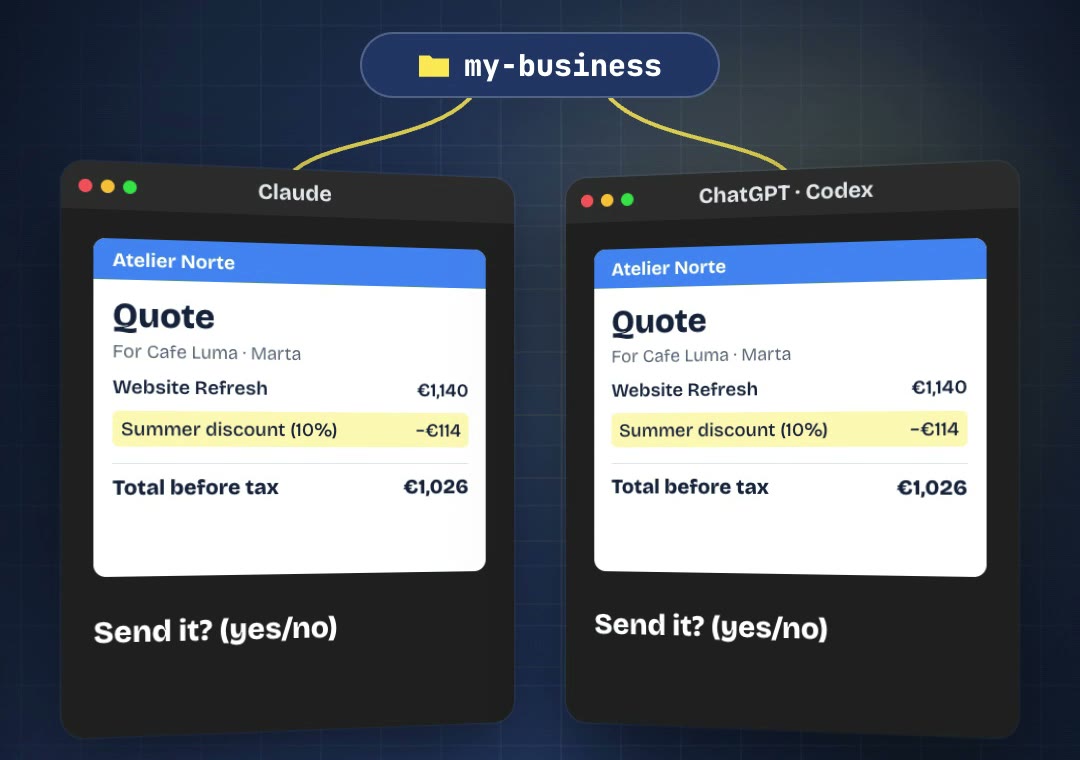
The code button in ChatGPT and Claude lets the AI work with a folder on your computer, and you don't write a single line. We ran the same request in both apps: same folder, same €1,026 quote, and both asked before sending.
Most people use AI as a chat. You paste something in, you copy something out. ChatGPT and Claude both have a second mode in their desktop apps, behind a button that is easy to miss. It switches from chat to code.
"Code" sounds like programming, but not for you. In this mode the AI works with a folder on your computer: it reads your files, runs small scripts and saves new files. You still write normal sentences. The AI writes the code, runs it, and you check the result.
In our first note we showed the folder behind our client's quote agent. This note shows how to open that folder in the apps you probably already have. We tried both on 13 October, each with a clean copy of the same fictional folder and the same sentence.
Before you start: one folder
Make one folder with what the task needs. Ours is called my-business:
clients.csvwho you work withprices.csvwhat you chargediscounts.mdyour discount rules, in plain wordsAGENTS.mdhow you work, including "ask before sending"
There is also a tools folder with two small scripts, one for the PDF and one for the email. The first note shows what each file contains.
Step 1 · Switch to code
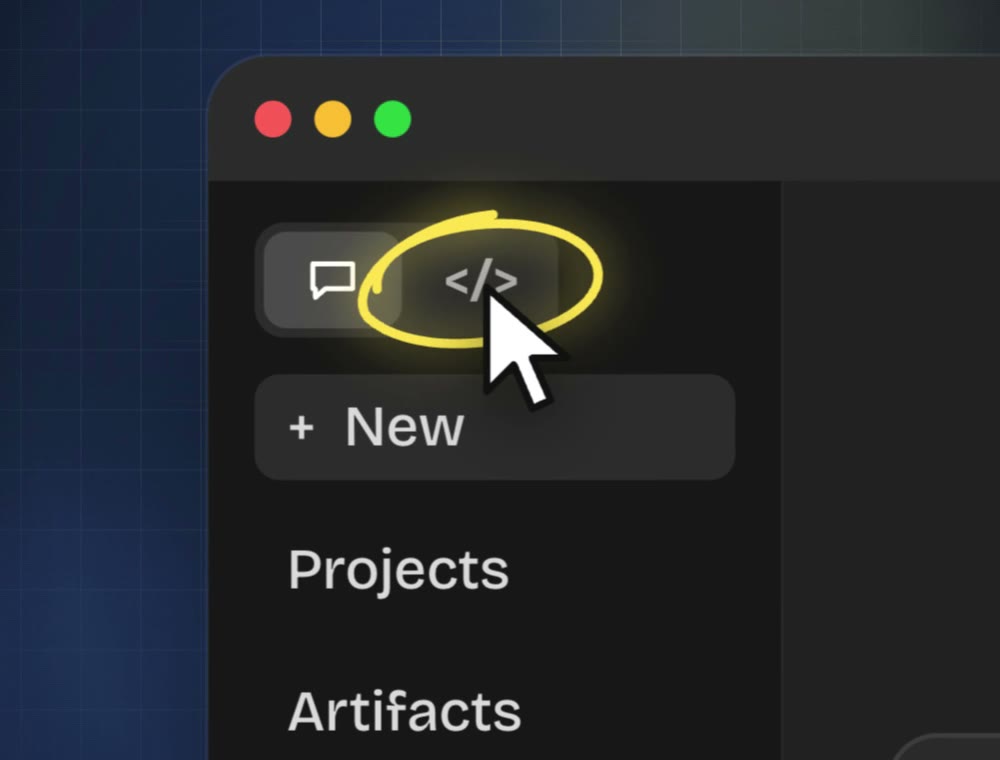
In the Claude desktop app, click the </> button at the top left, next to the chat button. (In ChatGPT it's called Codex. More on that below.)
Step 2 · Open your folder
Click the folder button just above the message box, choose "Open folder…" and pick your folder. Claude asks first:
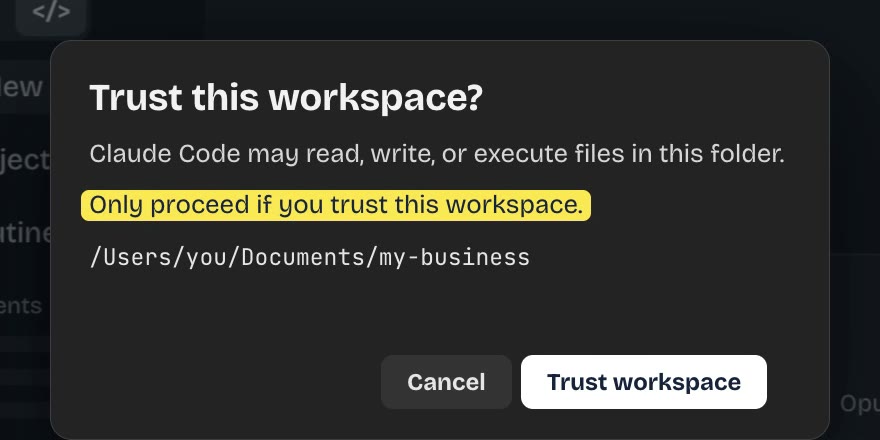
It's a fair question. In this mode the AI can read, change and run what's in that folder. Say yes only to folders you made, with nothing in them you wouldn't share with the AI provider.
Step 3 · Make it ask before it acts
At the bottom of the message box there is a mode menu. Ours was on Auto, where Claude handles permission decisions. We chose Manual: "Always ask before making changes".
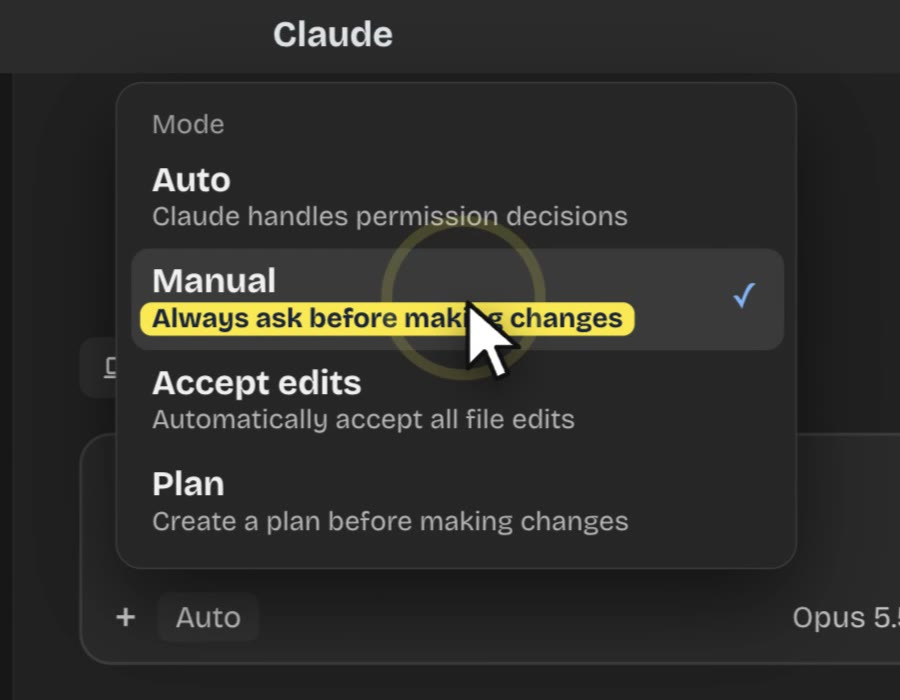
For your first tries, Manual is the calm option. You see each step before it happens.
Step 4 · Ask in one sentence
We typed the same sentence as in our first reel:
Quote Cafe Luma for a Website Refresh. Summer discount. Send it.
According to its log, Claude:
- read
clients.csv,prices.csvanddiscounts.md, and found Cafe Luma (Marta), €1,140 and the 10% summer discount, - read the two tools to see what they expect,
- calculated in code, with exact decimals: €1,140 − €114 = €1,026 before tax,
- made the PDF and opened it to check it.
In Manual mode it asked us twice: once to create the PDF and once, at the end, to run the email tool.
Notice that our sentence ends with "Send it". It still stopped. This is its message, word for word:
You asked me to send it, but your AGENTS.md says to show you the details first and wait for your yes, so nothing has gone out yet.Below that came the recipient, the subject, the total and the attachment.
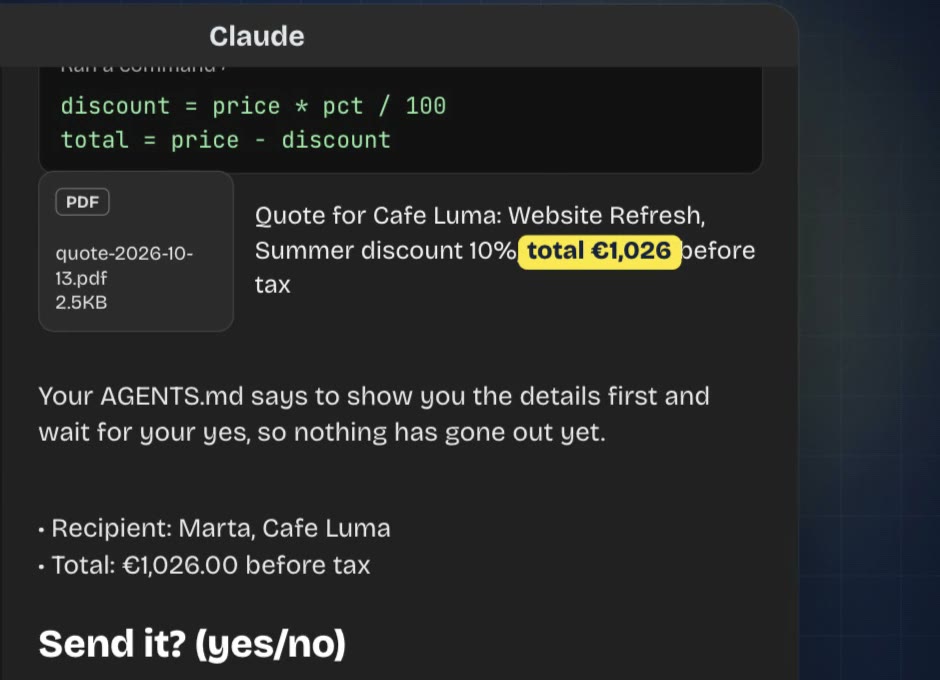
We answered "yes". The email went to a demo mailbox: a file in the outbox folder, not a real inbox.
The same four steps in ChatGPT
- Switch to code: open the ChatGPT menu at the top left and choose Codex.
- Open your folder: create a project and add the folder. We called ours "my business". It asks "Trust this folder?".
- Make it ask: choose "Ask for approval".
- Ask in one sentence: the same one.
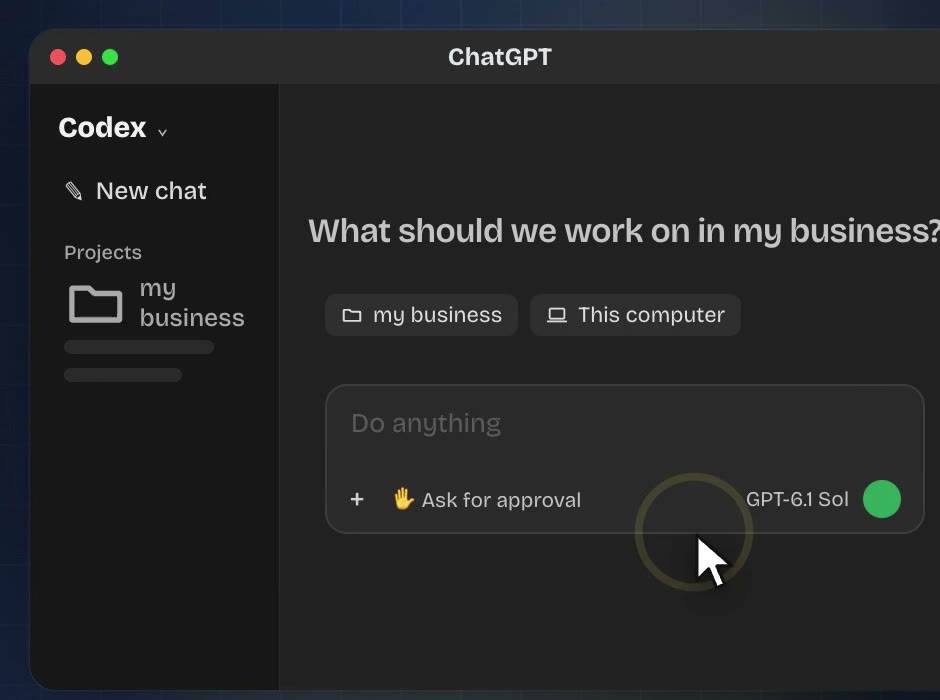
It worked for 55 seconds, made the same quote and ended with: "AGENTS.md requires confirmation after showing these details. Send it? (yes/no)".
The rule lives in the folder
This was the most useful thing we learned. Codex's "Ask for approval" didn't ask us anything during this job. Its menu explains why: it asks before using files outside the project or the internet, and inside the folder it just works. Even so, Codex stopped before sending.
That stop came from the folder, not from the app. Rule 4 of our AGENTS.md says to show the recipient, subject, total and attachment, then ask "Send it? (yes/no)" and stop. Both apps read it, so both asked. App settings are different in each app and change between versions. A rule written in your folder goes wherever the folder goes.
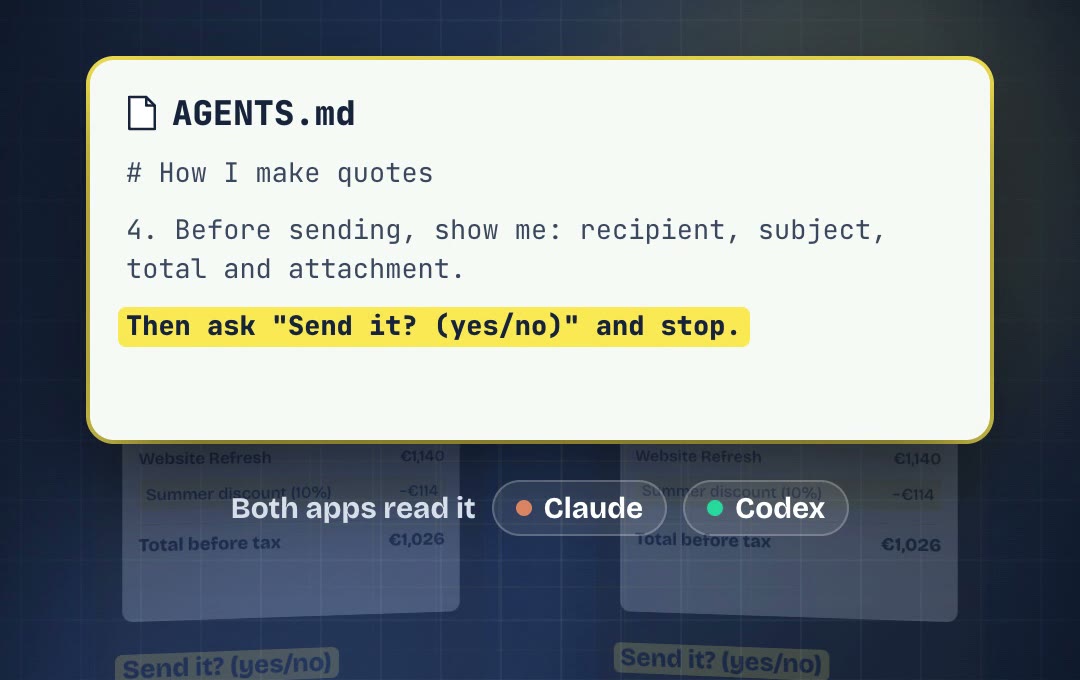
↑ Codex reads AGENTS.md. Claude reads CLAUDE.md. Ours has a single line, @AGENTS.md, which tells Claude to read AGENTS.md too. One set of rules, two apps.
Before you try it
- Start small: a new folder with only what one task needs, or a copy.
- Trust only your own folders. The AI can read, change and run what's inside.
- Write your "ask before" rules in the folder, in plain words. Don't rely only on an app setting.
- Check the first results against your files. Open the PDF and compare the numbers.
Coming up: keep it from forgetting
Long sessions fill up the AI's context, the space where it keeps everything in mind. Part 2 shows how to save where you are before that happens, and pick up in a fresh chat. Follow us on Instagram so you don't miss it.
Questions? Ask us there and we'll answer in the comments.
Fictional client and data. Real runs on 13 October 2026, each with a clean copy of the same folder: Claude Code in the Claude desktop app (Opus 5.5, Manual mode) and Codex in the ChatGPT app (GPT-6.1 Sol, Ask for approval). Screens recreated for the video with readable text. The emails went to a demo mailbox. Buttons, menus and availability change with app versions and plans. The video uses an AI voice.